How to Read Twitch Chat While Streaming (One Monitor, In Game, or on Your Phone)
Reading your own chat while you stream sounds like it should be the easy part. Then you go live with one monitor and a fullscreen game, and chat is simply not on your screen. Or it is, but you're mid-fight and by the time you look, the question someone asked has scrolled away.
These are 2 separate problems: getting chat somewhere you can see it, and actually keeping up with it. This guide covers both, setup by setup.
Step one: pop chat out
Whatever your setup, start with Twitch's popout chat. Open your channel, click the settings gear at the bottom of chat, and choose Popout Chat. You get chat on its own in a small window with no video player — light, resizable, and easy to put anywhere. Every option below builds on it.
With one monitor
- Borderless windowed game + popout chat. Set your game to borderless windowed (sometimes called windowed fullscreen), then snap a narrow popout chat to one edge. You lose a strip of the screen, but chat is always visible.
- OBS chat dock. In OBS, go to Settings → Stream and connect your Twitch account. OBS then adds a Chat dock you can place in its window — handy if you keep OBS open anyway.
- An always-on-top window. A small utility that pins the popout window above everything else keeps chat visible over a borderless game.
The trade-off with one screen is always space. Keep chat narrow and in a corner your game doesn't use — the minimap side is usually the worst choice.
Inside a fullscreen game
True exclusive fullscreen draws over everything, so no ordinary window will stay on top of it. You have 3 options: switch to borderless windowed (the cost is usually small on modern systems), use an in-game overlay such as the Steam overlay's web browser to open your popout chat, or move chat to another device entirely. The last one is the most reliable — it never fights the game for the screen.
On your phone or a tablet
A phone or tablet propped next to your monitor is the most underrated chat setup there is. Open your own channel in the Twitch app, or open the popout chat link in a mobile browser, and turn off screen auto-lock so it stays on. It costs nothing, takes no screen space, and works with any game in any mode. A cheap stand helps more than you would expect — chat at eye level is chat you actually glance at.
On console
Streaming from an Xbox or PlayStation leaves the TV fully occupied by the game, so a second device is the only real answer. Phone or tablet beside the TV, chat open, done. Some console streamers put a laptop on the desk instead, which also gives you room for your moderation tools.
In VR
With a headset on, nothing outside the game exists. Overlay apps for SteamVR, such as OVR Toolkit and XSOverlay, can pin a desktop window — your popout chat — inside your view, so you can glance at it without taking the headset off. Keep it small and off to one side, and pin it to your wrist or a corner rather than the middle of your view.
Having chat read out loud
Some streamers skip reading altogether and use text-to-speech, so chat messages are spoken aloud. It works on small, slow chats where every message matters. On a busy one it becomes noise quickly, and anything a troll types comes out of your speakers on stream — if you try it, limit it to specific messages rather than all of chat.
“Getting chat on screen is the easy half. Keeping up with it's the hard one.”
Step two: actually keeping up
Once chat is visible, a new problem appears: on an active stream it moves faster than you can read while playing. Nobody reads every message — the streamers who seem to manage it are skimming, and they have help. What works:
- Read in bursts, not continuously. Check chat at natural breaks — between rounds, on a loading screen, after a death — and scan it in a fixed order rather than from the top.
- Ask moderators to flag questions. A mod repeating "@streamer, X asked about your settings" is worth more than any layout.
- Slow mode when it's genuinely too fast. A few seconds between messages per person cuts the volume without killing the mood.
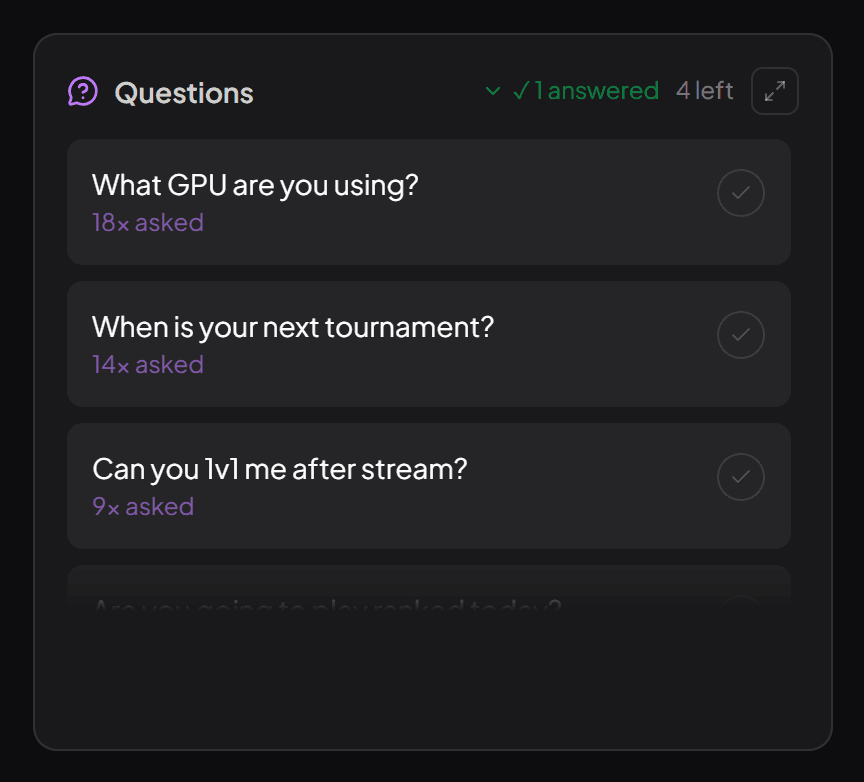
- Answer the repeated questions first. If 3 people asked it, thirty were wondering — here's how to stop missing them.
When the problem is the volume, not the screen
Past a certain size, no setup fixes it. You can have chat on a second monitor at eye level and still miss the question 4 people asked, because it arrived between 50 emotes while you were mid-fight.
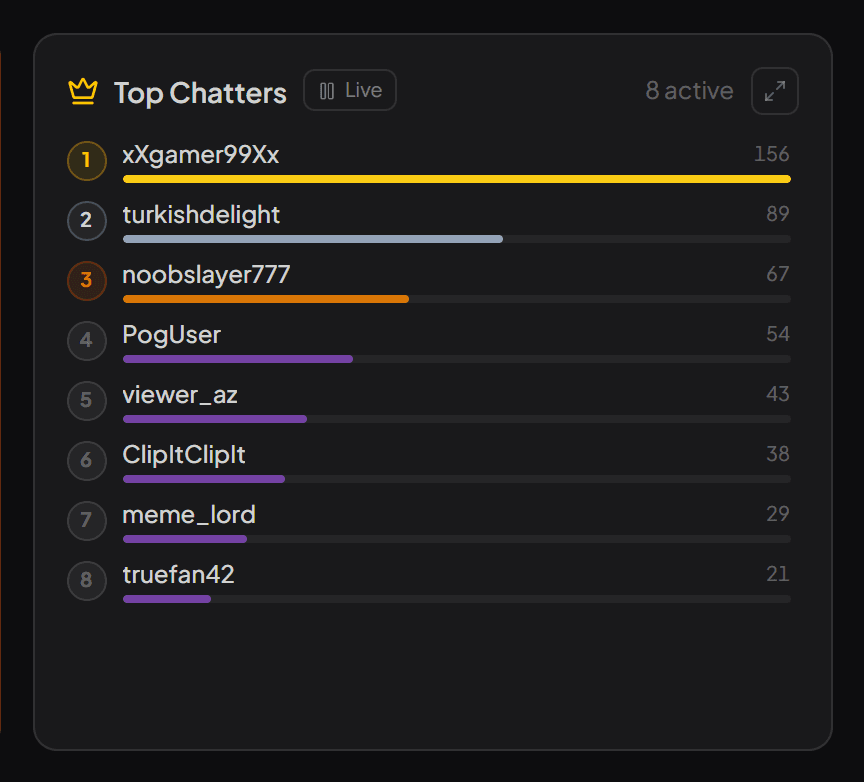
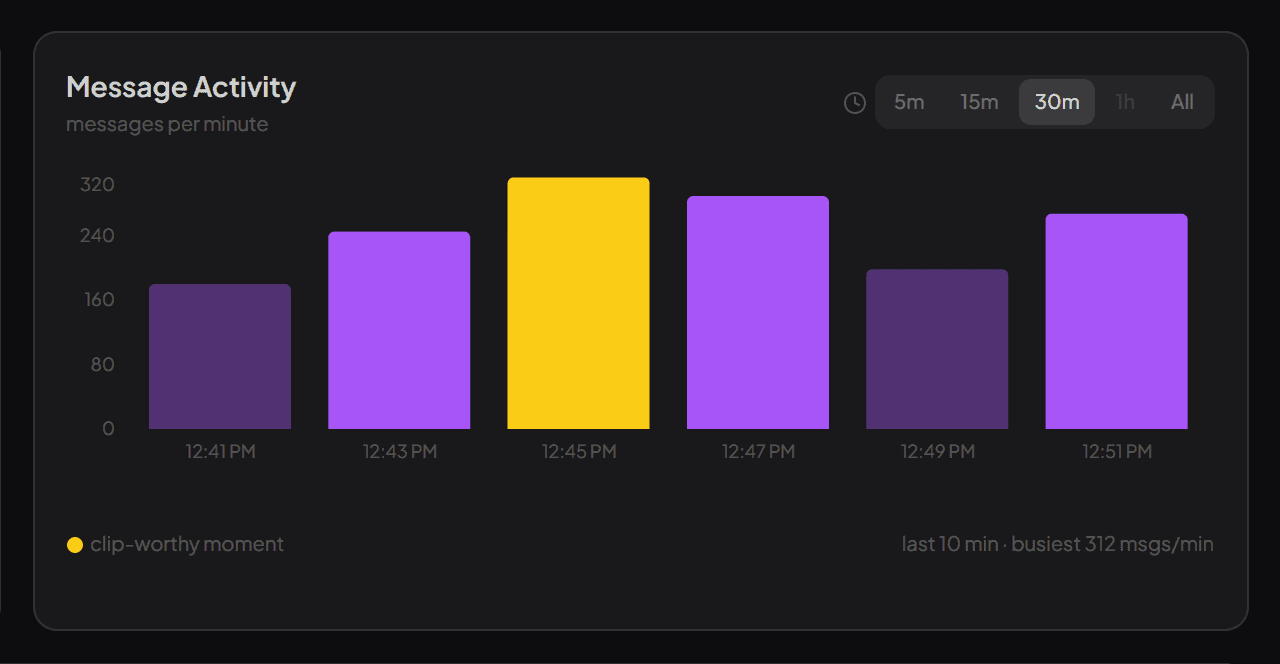
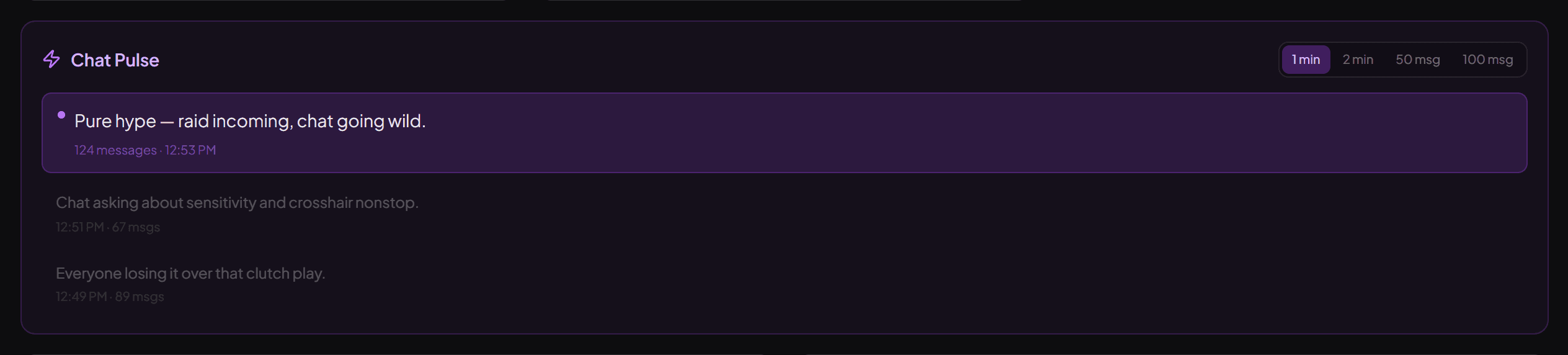
That's what streamerfriend is for. It reads your Twitch chat live and gives you the summary instead of the stream of text: the questions ranked by how many people asked, the mood of the room, spam waves as they start, and your most active chatters. It runs in a browser tab — on a second monitor, a laptop, or wherever you keep chat now — and it's read-only, so there's no bot in your channel and nothing for viewers to install.
The idea is the same as the phone-beside-the-monitor trick: put the important part of chat where a glance is enough. It works the same on YouTube Live and Kick if you stream to more than one platform — managing chat across all three goes deeper on that.
Quick answers
How do I read Twitch chat with one monitor?
Run your game in borderless windowed mode and keep Twitch's popout chat in a narrow window beside it, or connect your Twitch account in OBS and use its chat dock. If you play fullscreen, a phone or tablet propped next to your screen is the simplest option.
How do I see Twitch chat while playing a fullscreen game?
Exclusive fullscreen hides other windows, so switch the game to borderless windowed and put chat in an always-on-top window, or open chat on a second device. In Steam games, the Steam overlay's built-in browser can show chat without leaving the game.
How do I read Twitch chat on console?
Open your own channel's chat on a phone or tablet in the Twitch app or a browser and keep it beside the TV. That's how most console streamers do it.
How do streamers read chat so fast?
Mostly they don't read every message. They glance at chat between moments, rely on moderators to flag questions, use slow mode when it gets too fast, and on bigger streams use tools that pull out the questions and the mood so they can skip the rest.
Read your chat the easy way
streamerfriend turns fast chat into your top questions, mood, spam and highlights — live, for Twitch, YouTube & Kick.
Start for free →